How it works
When rate optimization is enabled for a shipping zone, Zonos evaluates each priority in order and selects one service level per carrier per priority. For example, with the default order (Price, Speed, Best value), it first picks the cheapest option from each carrier, then the fastest remaining option, then the best overall value — up to the maximum number of service levels you configure.
This means you do not need to manually select specific service levels for each zone. Zonos handles the selection dynamically at rating time based on live carrier responses.
Enable rate optimization for a zone
- In Dashboard, go to Settings -> Shipping -> Manage rates.
- Scroll to the Shipping zones section and click the zone you want to configure.
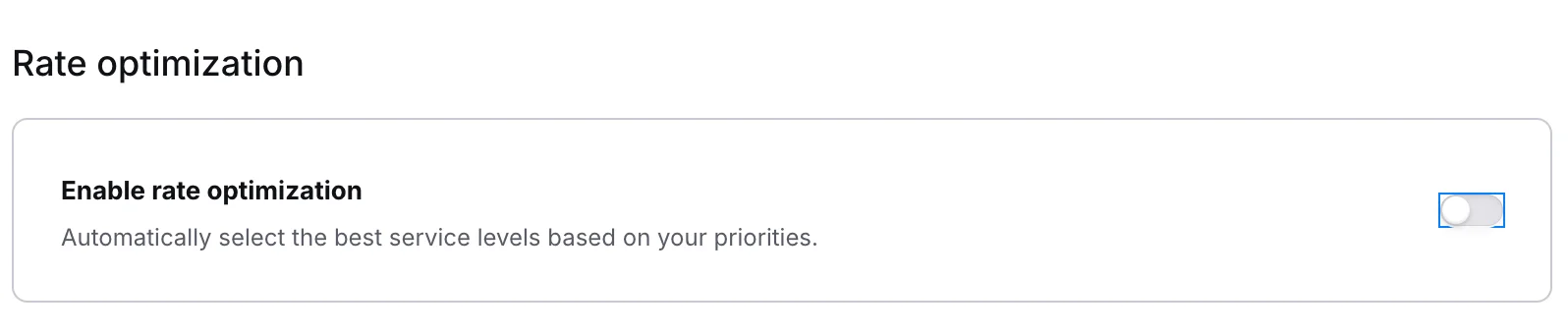
- Under Rate optimization, toggle Enable rate optimization on.
- Configure the settings below, then click Save changes.
Set the priority order
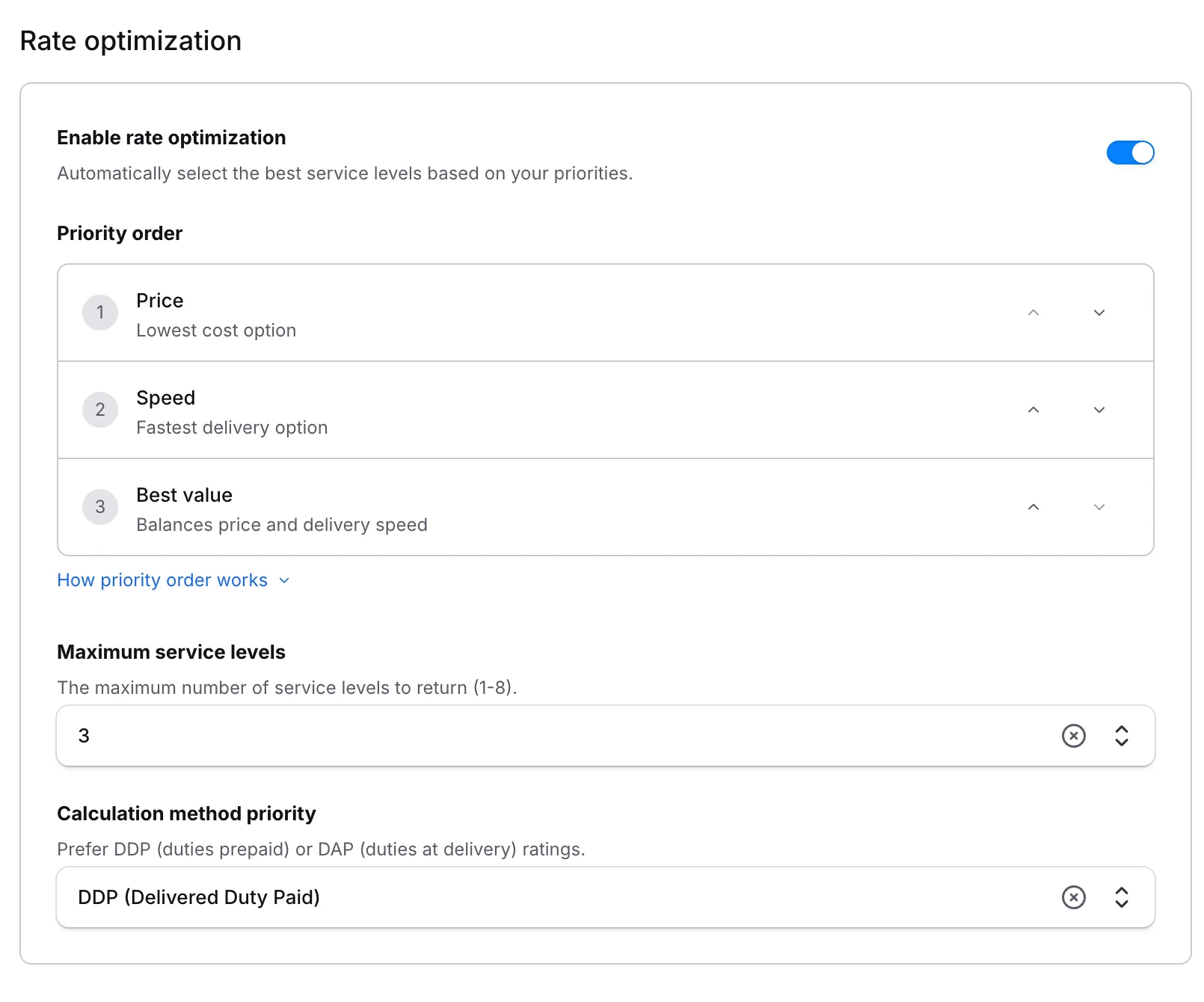
The priority order determines which type of service level Zonos selects first. Zonos picks one service level per carrier per priority slot.
| Priority↕ | Description↕ |
|---|---|
| Price | Selects the lowest-cost option from each carrier. |
| Speed | Selects the fastest delivery option from each carrier. |
| Best value | Selects the option that balances price and delivery speed. |
Use the up and down arrows next to each priority to reorder them. The default order is Price → Speed → Best value.
Set the maximum number of service levels
The Maximum service levels setting controls how many service levels are returned in total (across all carriers), from 1 to 8. For example, setting this to 3 with two carriers and the default priority order would return:
- The cheapest option from each carrier (Price)
- The fastest remaining option from one of the carriers (Speed)
Set this based on how many choices you want to present to your customers at checkout.
Set the calculation method priority
The Calculation method priority determines whether Zonos prefers DDP or DAP rates when both are available from a carrier.
| Option↕ | Description↕ |
|---|---|
| DDP (Delivered Duty Paid) | Duties and taxes are included in the shipping rate and prepaid by the customer at checkout. Recommended for the smoothest customer experience. |
| DAP (Delivered At Place) | Duties and taxes are collected by the carrier upon delivery. The customer pays these separately after the package arrives. |
DDP is the default and is recommended for most merchants because it eliminates surprise charges at delivery.
Manually override service levels
When rate optimization is enabled, all service levels for the zone are automatically included as the starting pool. You can still manually deselect specific service levels from the list if you want to exclude certain options regardless of optimization settings. The optimization logic only selects from the service levels that remain checked.
Disable rate optimization
To turn off rate optimization for a zone and return to manual service level selection:
- In Dashboard, go to Settings -> Shipping -> Manage rates.
- Click the shipping zone you want to modify.
- Under Rate optimization, toggle Enable rate optimization off.
- Manually select the service levels you want to display for this zone.
- Click Save changes.
Rate optimization
Automatically select the best service levels for each shipping zone.
Rate optimization lets you define how Zonos selects shipping service levels when calculating rates for a zone. Instead of manually curating which service levels to show, you set a priority order and Zonos automatically picks the best options from your enabled carriers — cutting down on configuration time and ensuring your customers always see relevant rates.